Domain management
You can view and manage your domains from the Domains Dashboard. You can also manage your sending and receiving domains using the API, the CLI, or the MCP server. We recommend sending your emails from one or more subdomains (e.g.,updates.example.com) instead of your root domain to isolate your sending reputation and to clearly communicate your intent to your recipients.
Each individual subdomain must be added and verified independently, and they will each be listed separately in your Dashboard.
Learn more about the benefits of sending emails from a subdomain.
View domain details
The Domains dashboard shows information about your domain name, its verification status, and history.Understand a domain status
Domains can have different statuses, including:not_started: You’ve added a domain to Resend, but you haven’t clicked onVerify DNS Recordsyet.pending: Resend is still trying to verify the domain.verified: Your domain is successfully verified for sending in Resend.partially_verified: One capability (send or receive) is verified while the other is still pending verification.partially_failed: The domain is verified but one of the features (send or receive) is not verified.failed: Resend was unable to detect the DNS records within 72 hours.temporary_failure: For a previously verified domain, Resend will periodically check for the DNS record required for verification. If at some point, Resend is unable to detect the record, the status would change to “Temporary Failure”. Resend will recheck for the DNS record for 72 hours, and if it’s unable to detect the record, the domain status would change to “Failure”. If it’s able to detect the record, the domain status would change to “Verified”.
View DNS records
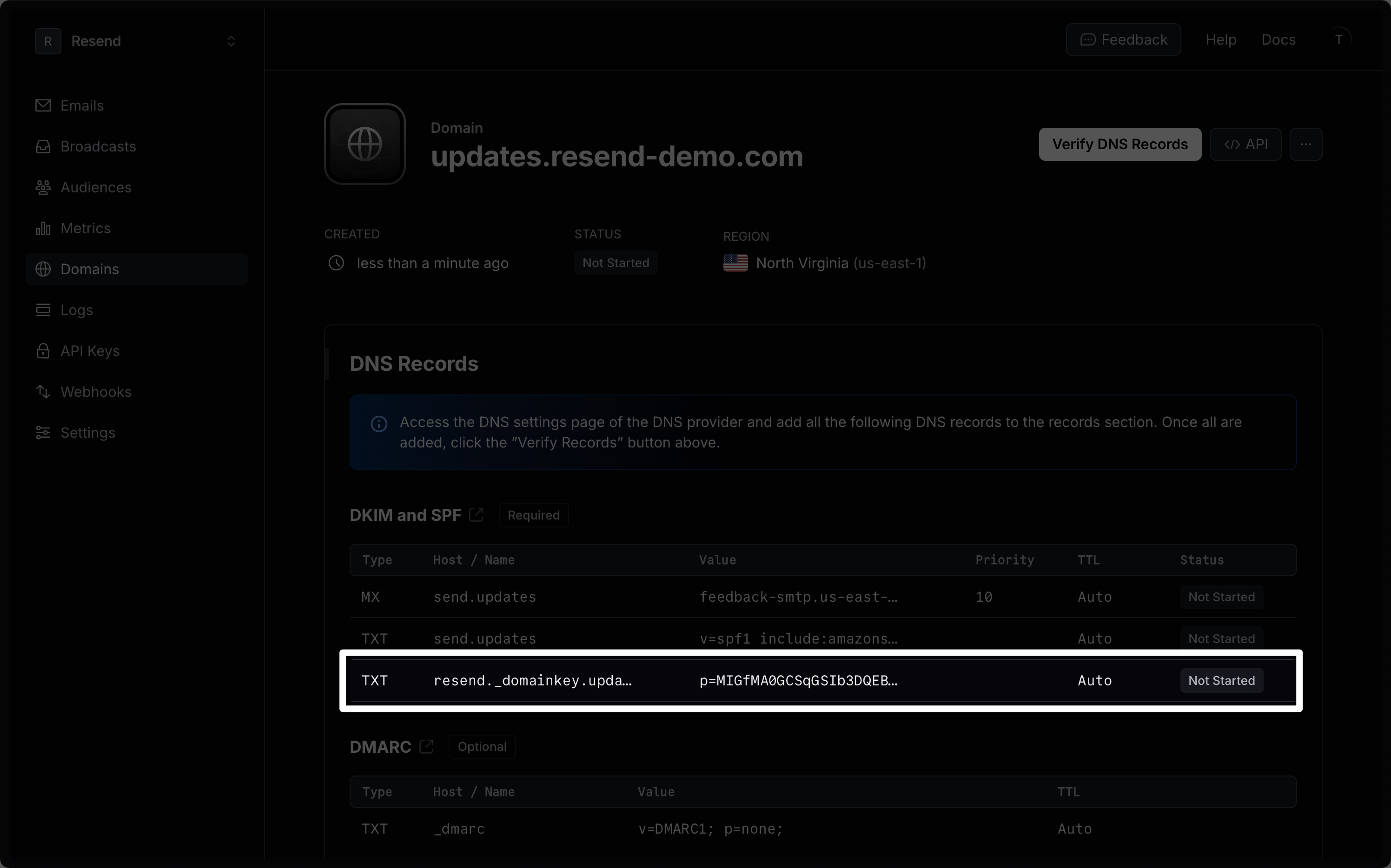
For each domain you have added, you can view the DKIM and SPF configurations generated by Resend, as well as DMARC protocol parameters under the Records tab.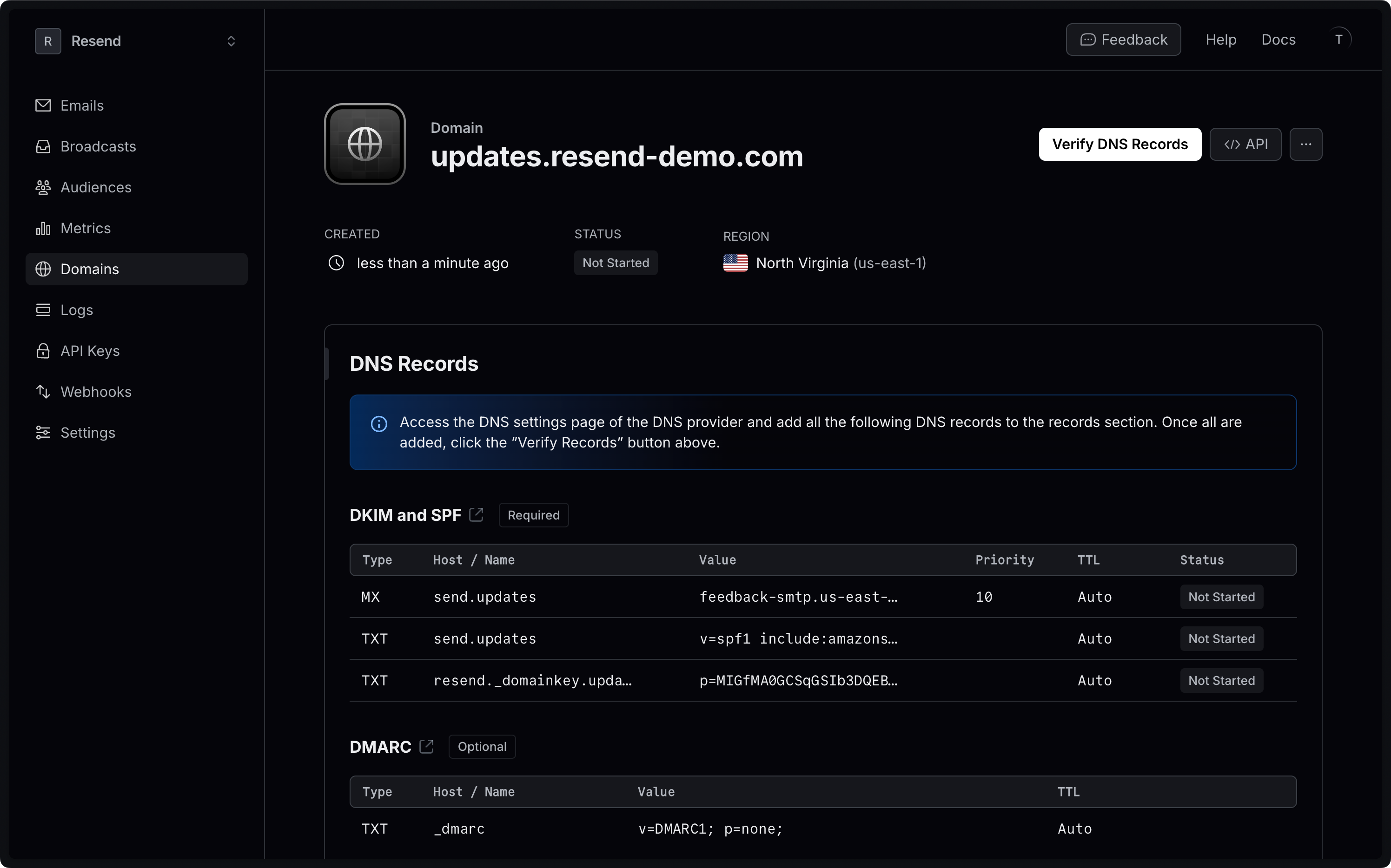
Need specific help adding your records to a DNS provider? View our knowledge
base DNS Guides.
Configure open and click tracking
Open and click tracking is disabled by default for all domains. You can enable it in the Resend Dashboard under the Configuration tab or programmatically.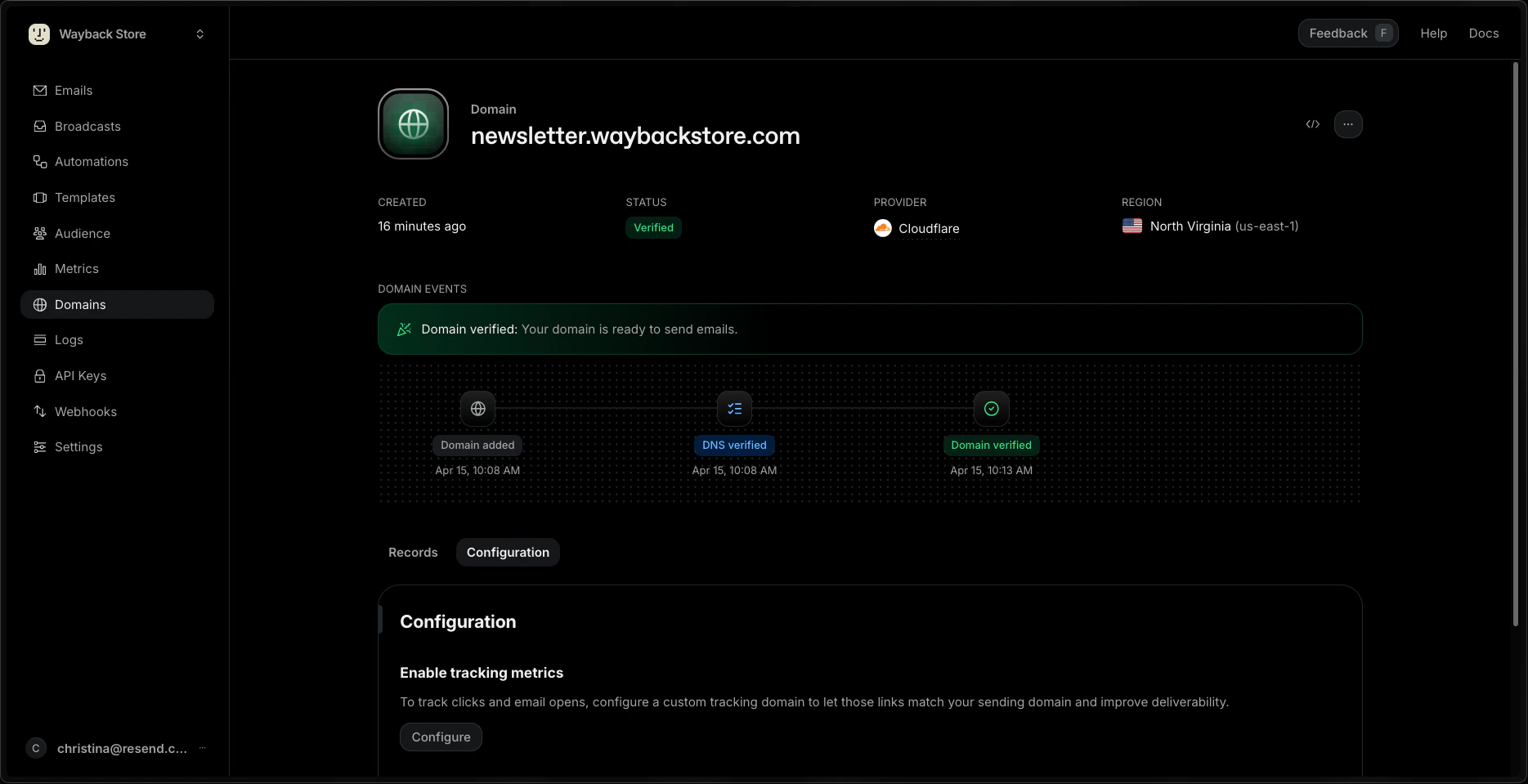
Configure Enforced Transport Layer Security (TLS)
Resend supports TLS 1.2, TLS 1.1 and TLS 1.0 for TLS connections, but only requires TLS for sending when Enforced TLS is configured. By default, Resend will attempt to make a secure connection, but will fall back to sending messages unencrypted when the receiving server does not support TLS. You can configure Enforced TLS in the Resend Dashboard under the Configuration tab or programmatically. This means that if the receiving server does not support TLS, your email will not be sent. Learn more about Opportunistic TLS vs Enforced TLS.Custom Return Path
By default, Resend will use thesend subdomain for the Return-Path address. You can change this by setting the optional custom_return_path parameter when creating a domain via the API or under Advanced options in the dashboard.
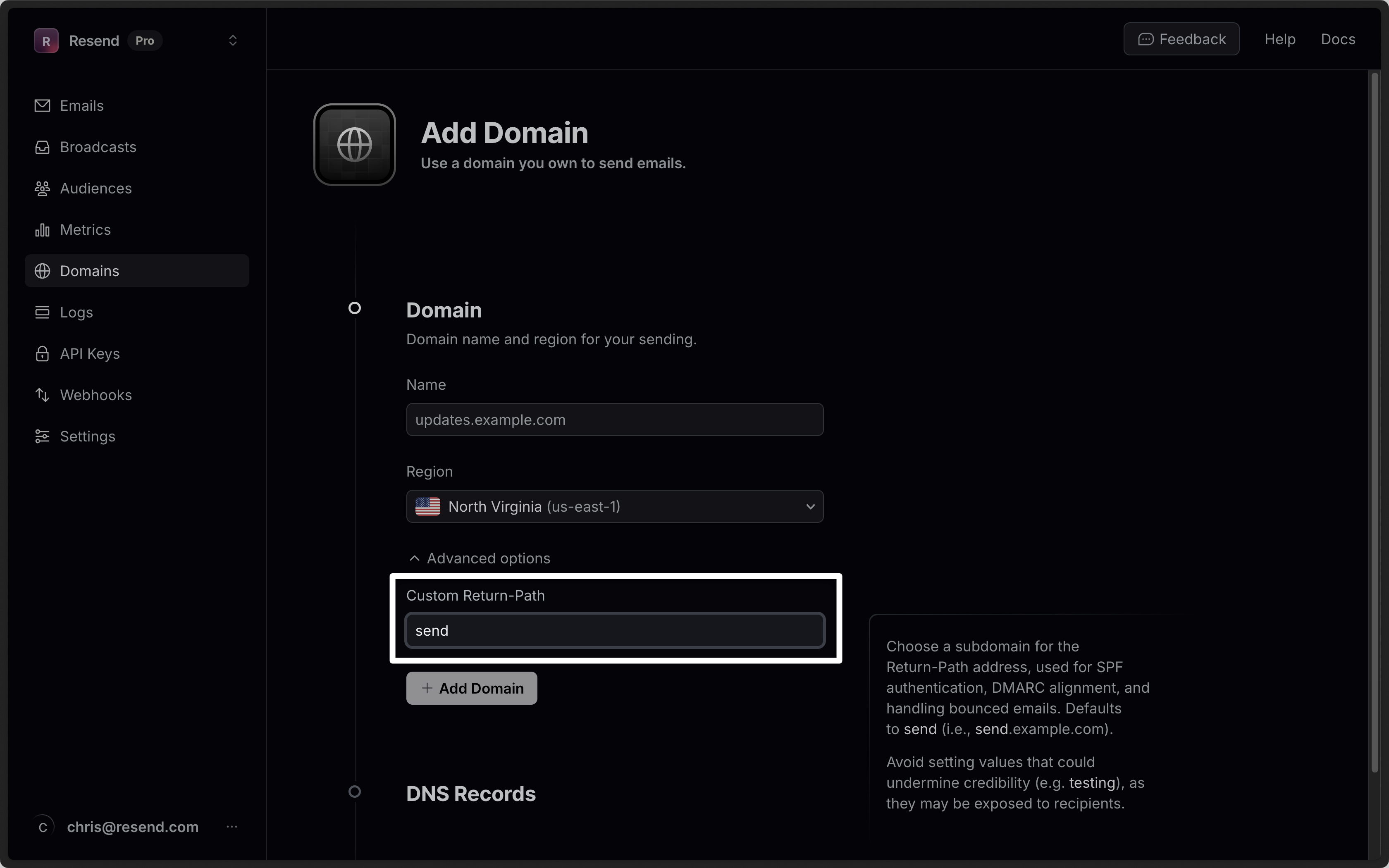
- Must be 63 characters or less
- Must start with a letter, end with a letter or number, and contain only letters, numbers, and hyphens
testing), as they may be exposed to recipients in some email clients.
Export your data
Admins can download your data in CSV format for the following resources:- Emails
- Broadcasts
- Contacts
- Segments
- Domains
- Logs
- API keys
Currently, exports are limited to admin users of your team.
All exports your team creates are listed in the
Exports page under Settings > Team >
Exports. Select any export to view its details page. All members of your
team can view your exports, but only admins can download the data.
What are SPF records
Sender Policy Framework (SPF) is an email authentication standard that includes all the IP addresses authorized to send email on behalf of your domain. The SPF configuration is made of a TXT DNS record that lists the IP addresses approved by the domain owner. It also includes an MX record that allows the recipient to send bounce and complaint feedback to your domain.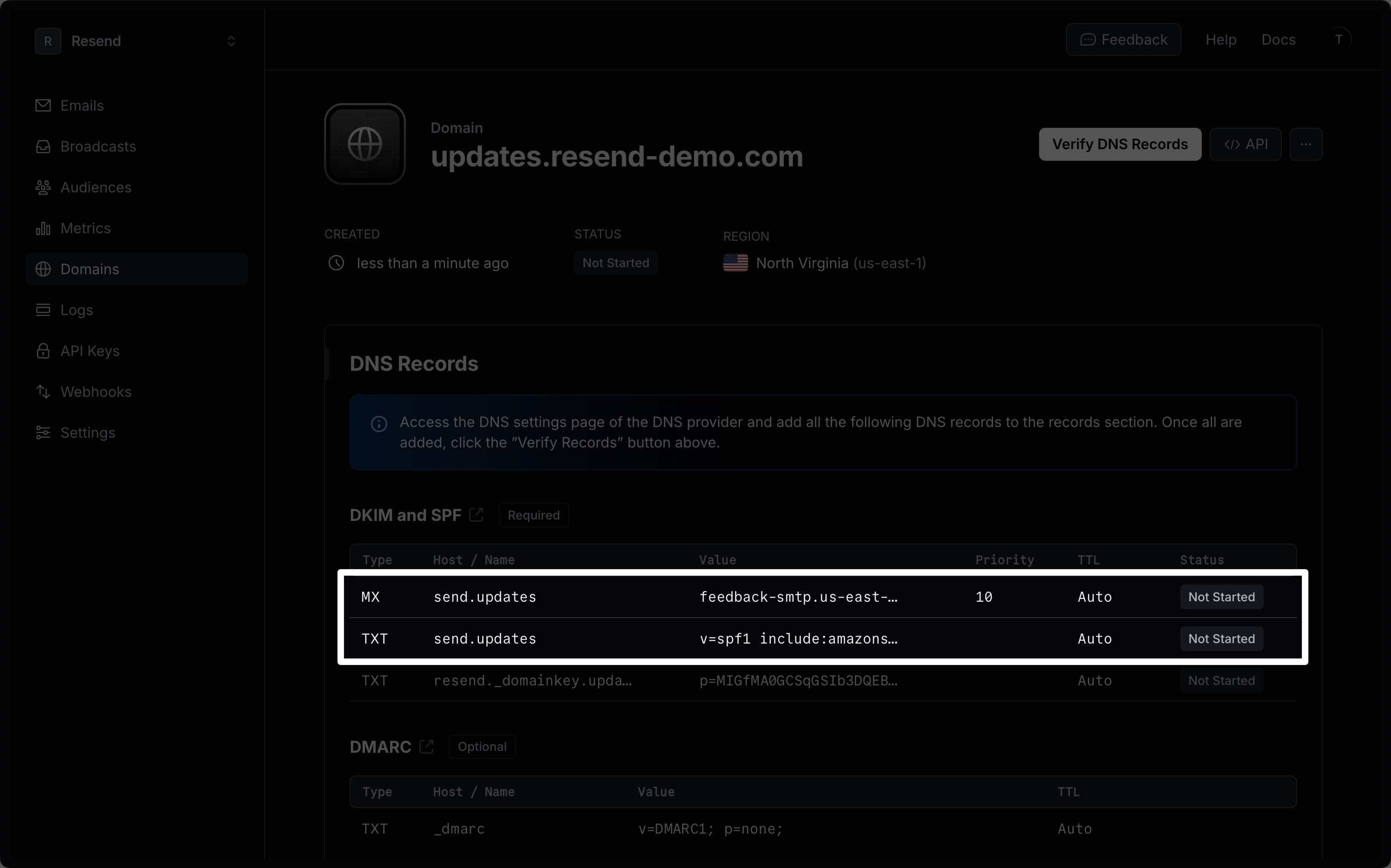
What are DKIM records
DomainKeys Identified Mail (DKIM) is an email security standard designed to make sure that an email that claims to come from a specific domain was authorized by the owner of that domain. The DKIM configuration is stored as a TXT DNS record that contains a public key used to verify the authenticity of the email.